Introduction
Release 2.0 of the OneMarket Insights application introduces a new visual design and improved navigation elevating the overall user experience for end users. Insights users will also now have access to the OneMarket Knowledge Base.
Release 2.0 includes the following enhancements:
- User experience redesign for improved navigation and usability
- Redesigned navigation and landing page featuring 'Recents'
- User authentication enhancements for improved security
- A new knowledge base containing insights documentation as well as quick access to OneMarket Application Support
Release Schedule
Release 2.0 will be in Production (https://onemarket.logicsource.net) on October 8th, 2022.
2.0 Insights Enhancements
Login Page
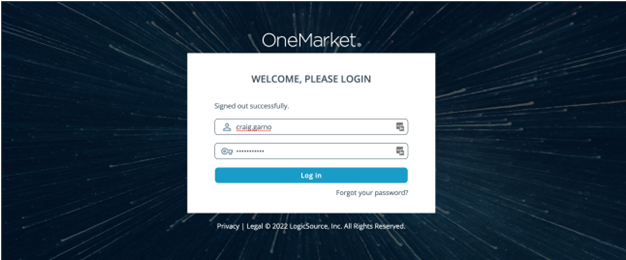
OneMarket Insights Users now access the application through the general OneMarket login page containing additional user authentication features such as password complexity and forgotten passwords.
Updated Visual Design
OneMarket Insights inherits the new visual design look and feel that has become the standard for OneMarket applications. The login page, OneMarket branding and graphical user interface styles are completely updated to match.

Top Level Navigation
Home Page
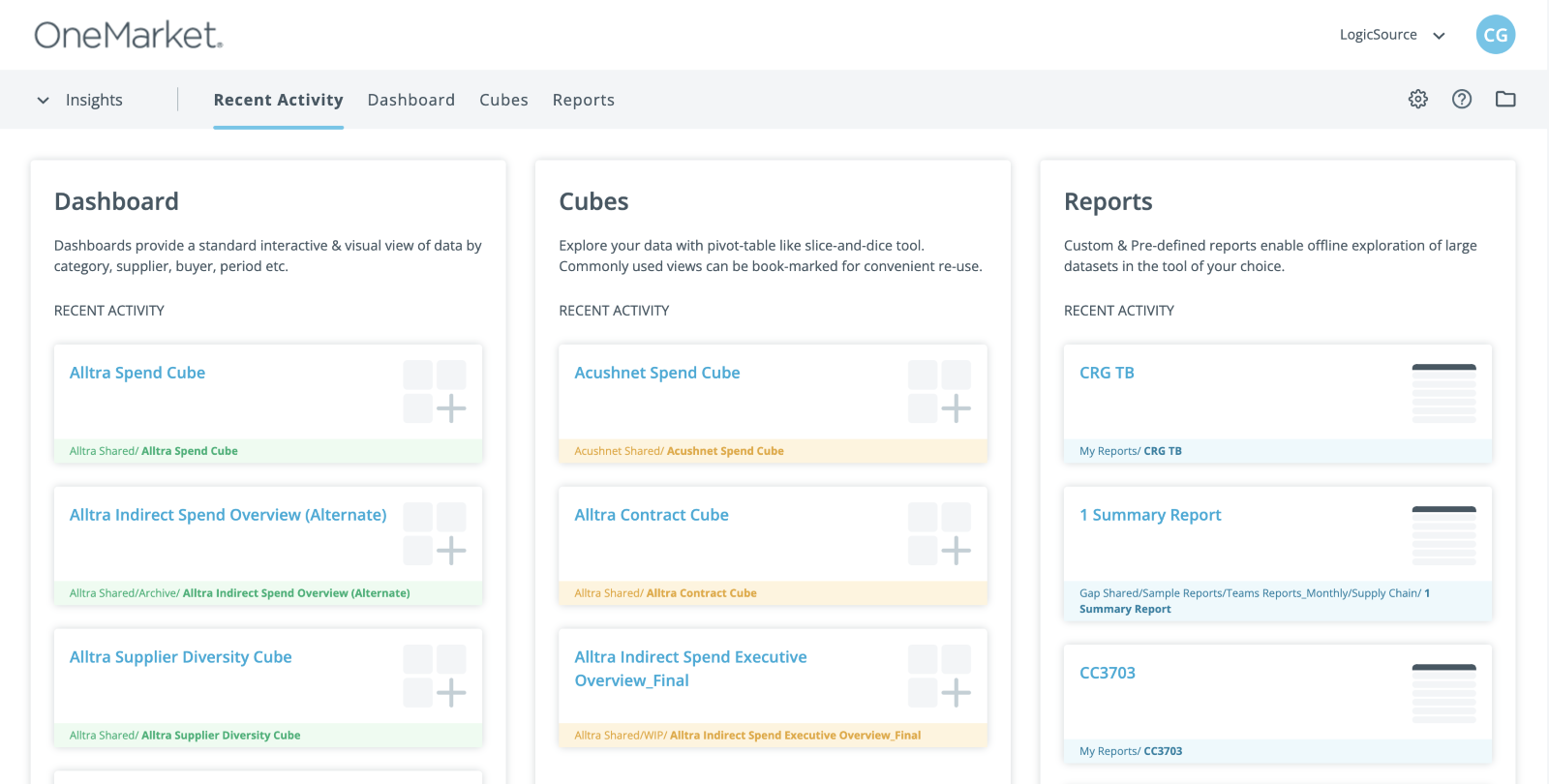
OneMarket Insights has a completely redesigned home page that focuses on allowing users to quickly navigate to their dashboard, cube, and report assets.
Users choose to navigate directly to dashboard, cube and report assets via the options in the menu bar or via their recent activity lists.
Recent Activity
The body of the home page contains each user’s recently used assets grouped in dashboard, cube, and report lists. Users simply click one of the desired cards and Insights redirects and loads the selected asset.
Navigation Features
OneMarket Insights introduces several new features that organize a user’s dashboard, cube and report assets for more intuitive and easy access.

Profile
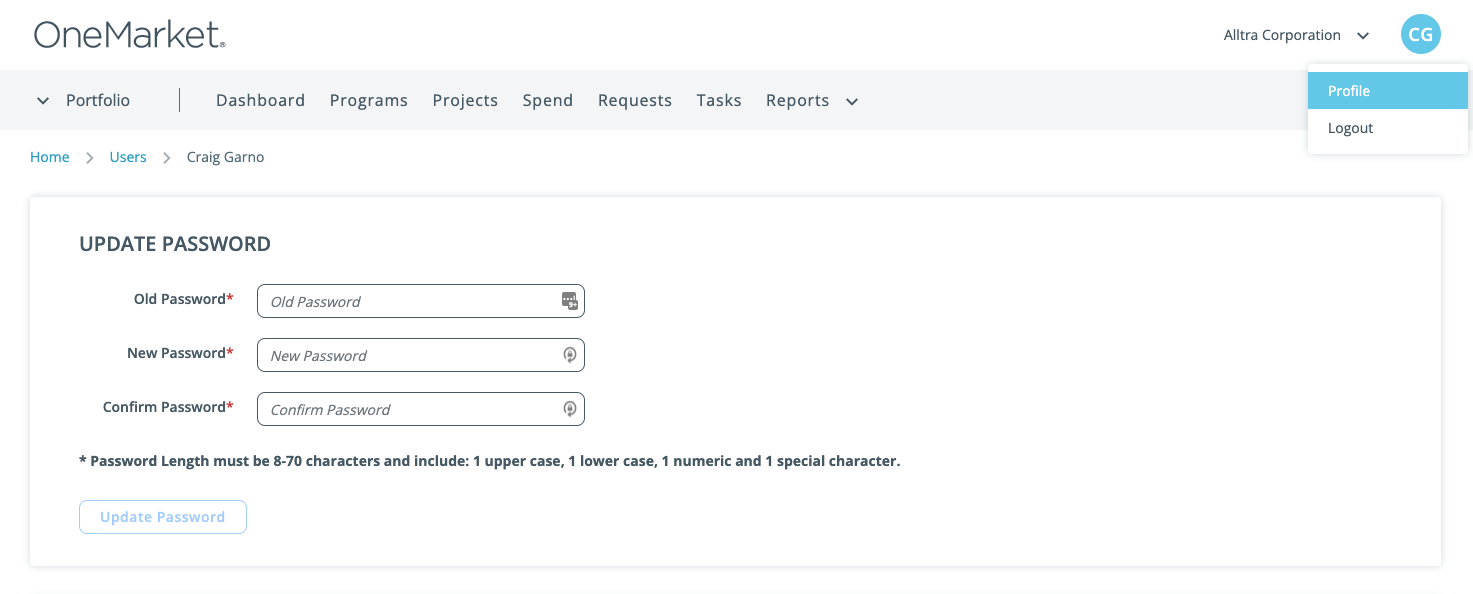
The first and last initials of the logged in user appears in a Profile link in the header row. The link gives access to the user’s profile details and the logout link.
OneMarket Menu Bar
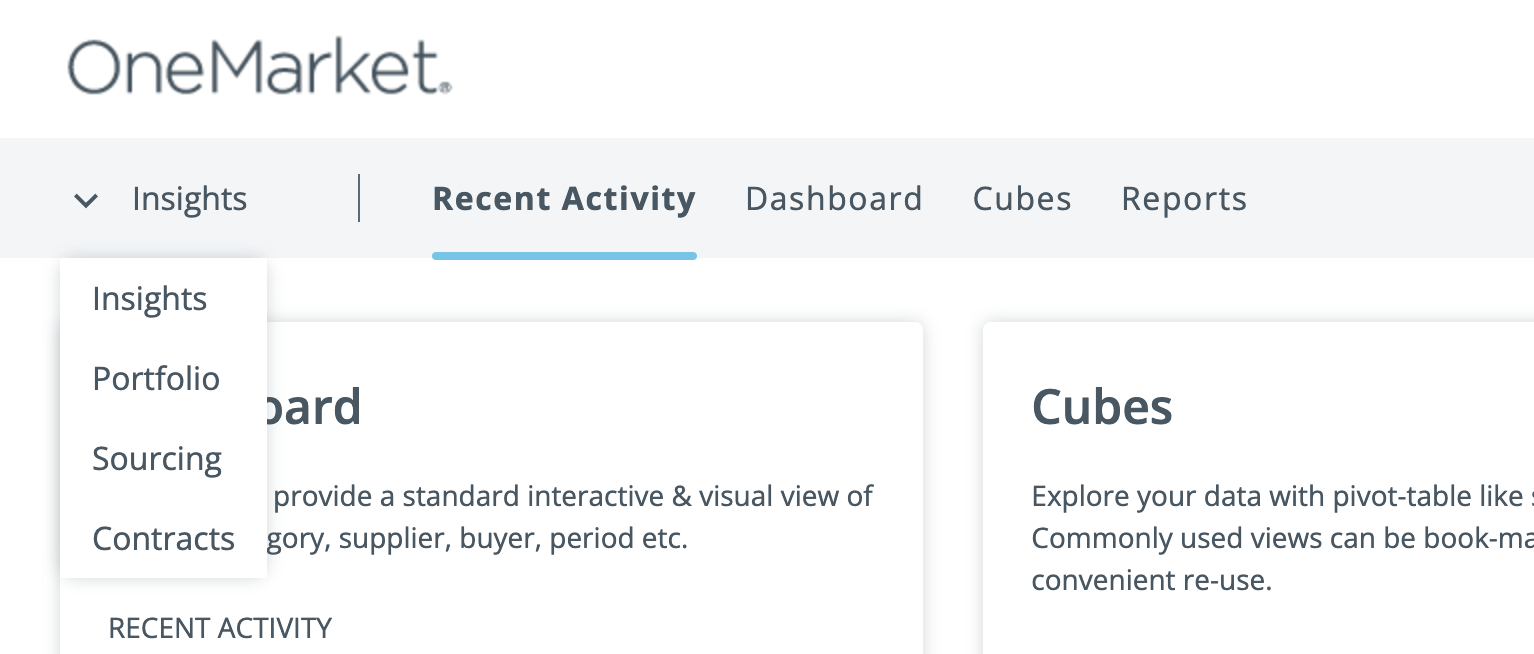
The menu bar contains an application selector that is active for users having access to more than one OneMarket application. Users select an application via a drop down menu.
The menu bar provides context options for the respective application. OneMarket Insights’ menu bar contains links to the Recent Activity page as well as Dashboard, Cube and Report viewers.
Settings
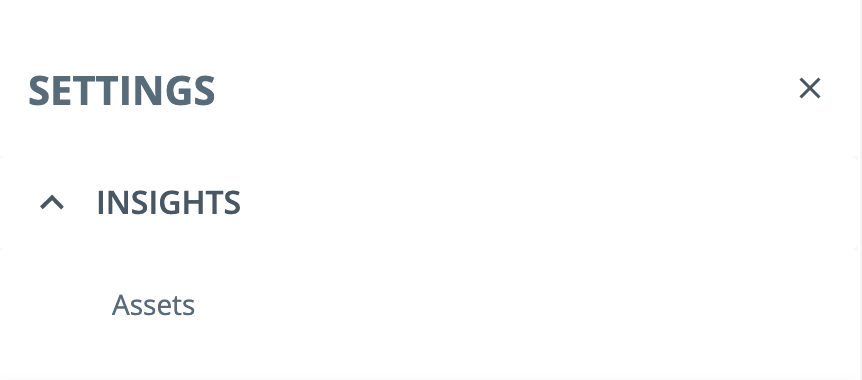
The settings menu is accessed via the gear icon on the right side of the menu bar. Settings are organized by product system and configuration functions for users with administrative permissions.
Repository
The OneMarket Insights Repository is accessed via the folder icon in the menu bar. Each user’s assets are displayed in a menu that slides in from the right side of the browser.
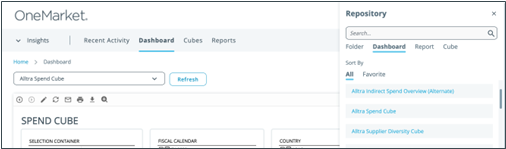
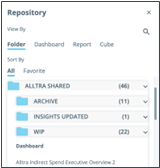
The Repository has the following features:
- Organize assets into user-defined folders
- Asset type grouping by Dashboard, Report or Cube
- Search for an asset via the magnifying glass icon
- Favorites - mark and unmark assets as favorites and display in a separate Favorites list
- Launch an asset by clicking on its name
- Drag and drop moving of assets and folders
- Edit a report via a context help menu
Knowledge Base
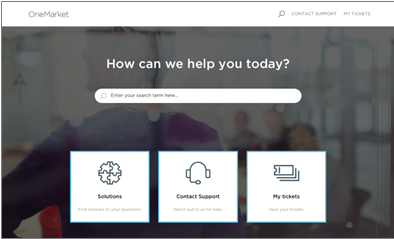
The OneMarket Knowledge Base contains complete documentation for OneMarket Insights and links to OneMarket Support resources.

Registered users can reach out directly to OneMarket Technical Support by creating a new ticket via the ‘Contact Support’ option.
Asset Type Features
Below the menu bar are common features that assist when working within the dashboard, cube, or report asset types.
The breadcrumb bar and asset selector lists are two features that assist user navigation while working with the dashboards, cubes or reports respectively.
The breadcrumb feature informs the user where they are in the application and allows reverse navigation.

The asset selector provides a convenient dropdown list of a user’s assets. The list is in the context of the asset type - dashboard, cube or report. The Refresh button allows the user to sync new assets recently created by an administrator to appear in the user’s dropdown.

The Default toggle sets the current asset as the default asset for that asset type. The default asset will display when a user selects either Dashboards, Cubes, or Reports from the main menu.

Interacting with Insights Assets
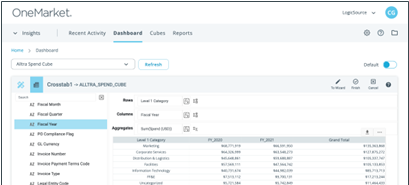
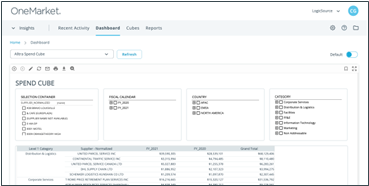
Once a user has selected a dashboard, cube, or report asset type, all of the asset type's respective features are unchanged and work per current functionality (e.g., build, edit, bookmark, favorites, sort, filter, export, etc.).
Creating a New Report
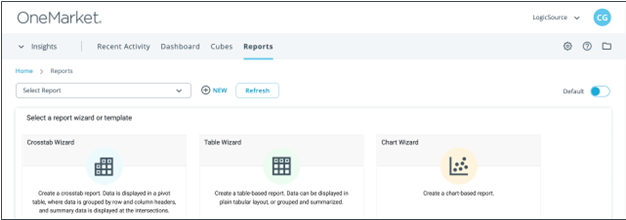
Within Reports, the new button allows the user to access the existing features to create and save an ad hoc report.
User Authentication Security Enhancements
New user authentication features have been added to provide enhanced security.
- User account lockout after five failed login attempts
- A locked account will unlock after 15 minutes
- Password expiration – Users will be required to change their password every 90 days and will be notified via email both seven days and one day before their password expires
Additionally, a user can now reset their OneMarket password via their Profile page.